Gravity Drop: cards that drop in and pile up
ProYour images drop in one by one, tumble, land and pile up, then fall away and start again.
Opens in the studio with sample work. Try it free; exporting it needs Pro.
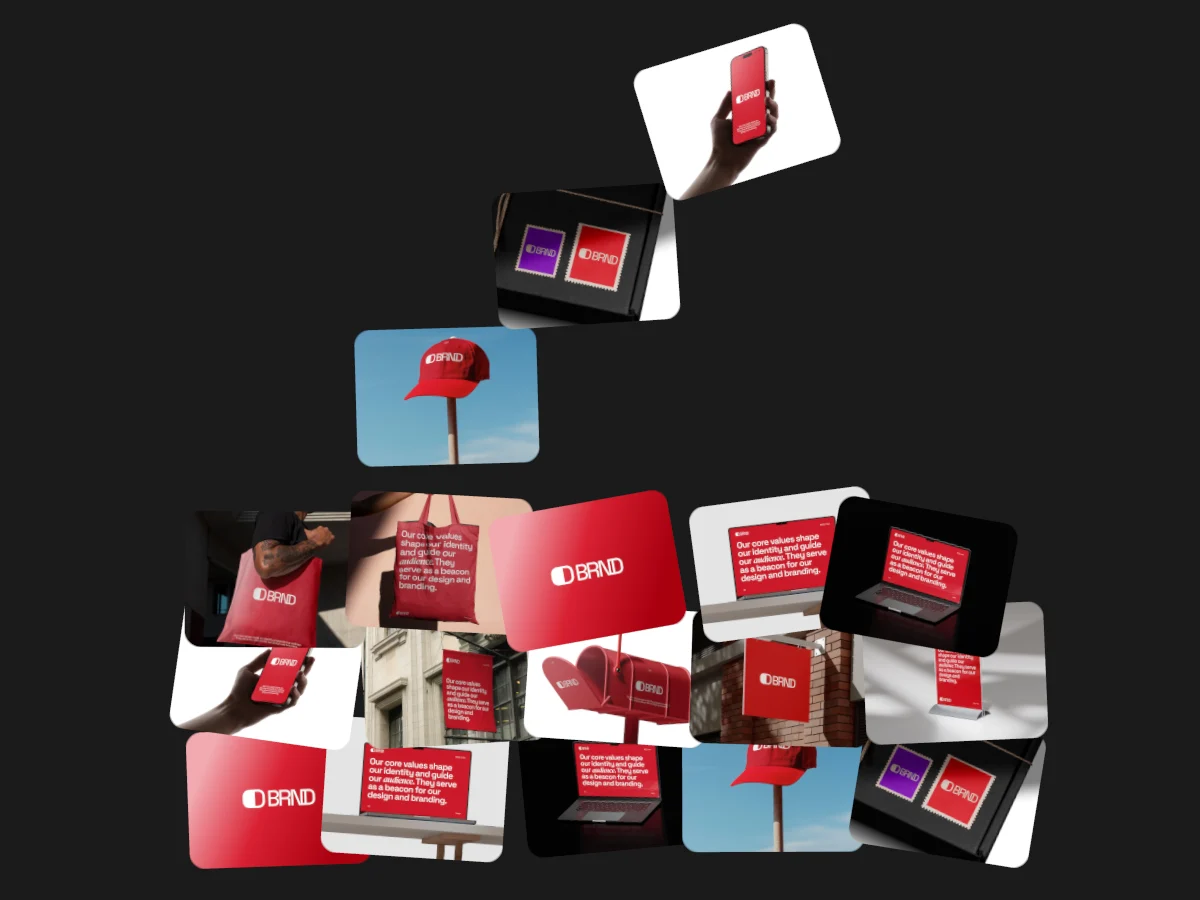
How Gravity Drop moves
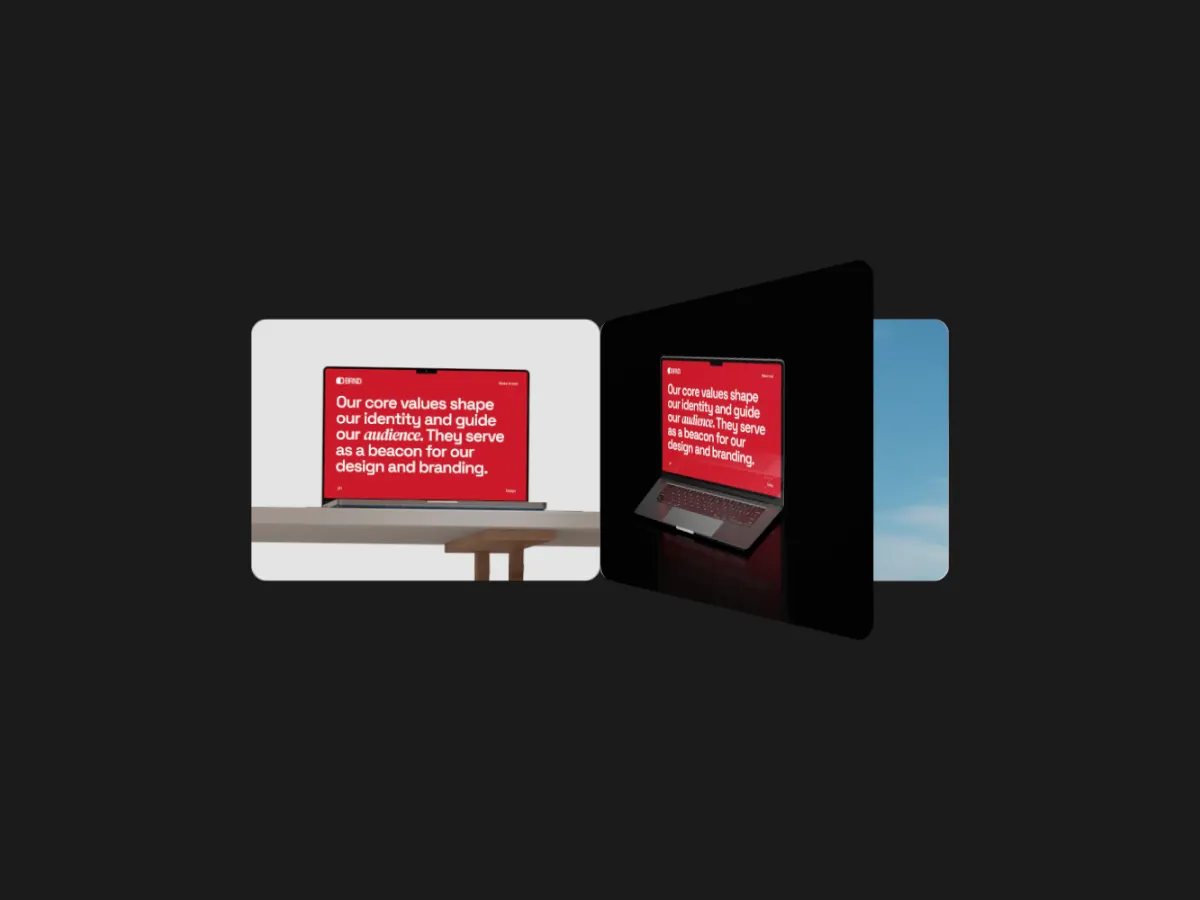
Gravity Drop lets cards fall from above the frame, tumble on the way down and land in a pile that builds up from the floor. At the end of the loop the pile drops away, so the next round starts on an empty frame. Choose how messy the pile is and how hard the cards bounce. Playful and good for collections.
In the studio you can tune its 7 settings along with the background, shadow and loop length, and your images never leave your device.
Gravity Drop settings
Every setting below is in the studio panel for Gravity Drop. Each one changes the loop live, so you can try values while it plays.
| Setting | Range | Starts at |
|---|---|---|
| Padding | 0% to 20% | 4% |
| Corner radius | 0% to 12% | 2% |
| Card count | 4 to 40 | 18 |
| Card size | 10% to 50% | 22% |
| Mess | 0% to 100% | 40% |
| Bounce | 0% to 100% | 50% |
| Drop time | 40% to 85% | 70% |
Make a Gravity Drop video
- Step 1
Open the template
"Use this template" opens Gravity Drop in the studio at 4:5, already playing with sample work.
- Step 2
Add your work
It starts with 12 spots for images or short videos. Empty spots repeat your images, so a few are enough.
- Step 3
Tune the motion
Change the 7 settings above, the loop length (8 seconds to start), background and shadow.
- Step 4
Export the loop
Download MP4 or WebM. 720p is free with a free account and no watermark; 1080p, 2K and 4K come with Pro.
Where Gravity Drop works well
- Dribbble shot video
Turn static 4:3 designs into an animated Dribbble shot. Seamless MP4 loops sized for Dribbble, made in your browser. Free 720p export.
- Product Hunt video
Make a Product Hunt launch video from your product screenshots. A looping 16:9 MP4 ready for YouTube, made in your browser. Free 720p export.
- Instagram Reels
Turn screenshots into Instagram Reels and Stories at 9:16, or feed videos at 4:5. Motion built for tall frames, made in your browser. Free 720p.
More Stack & Scatter templates
Other kinds of motion
- 3D & Perspective 19
- Multiscene 8
- Isometric 4
- Orbit 9
- Carousel & Flow 13
- Grid 10
- Spotlight & Focus 8
- Reveal & Wipe 6
- Stack & Scatter 9