Twin Rings: two tilted rings turning opposite ways
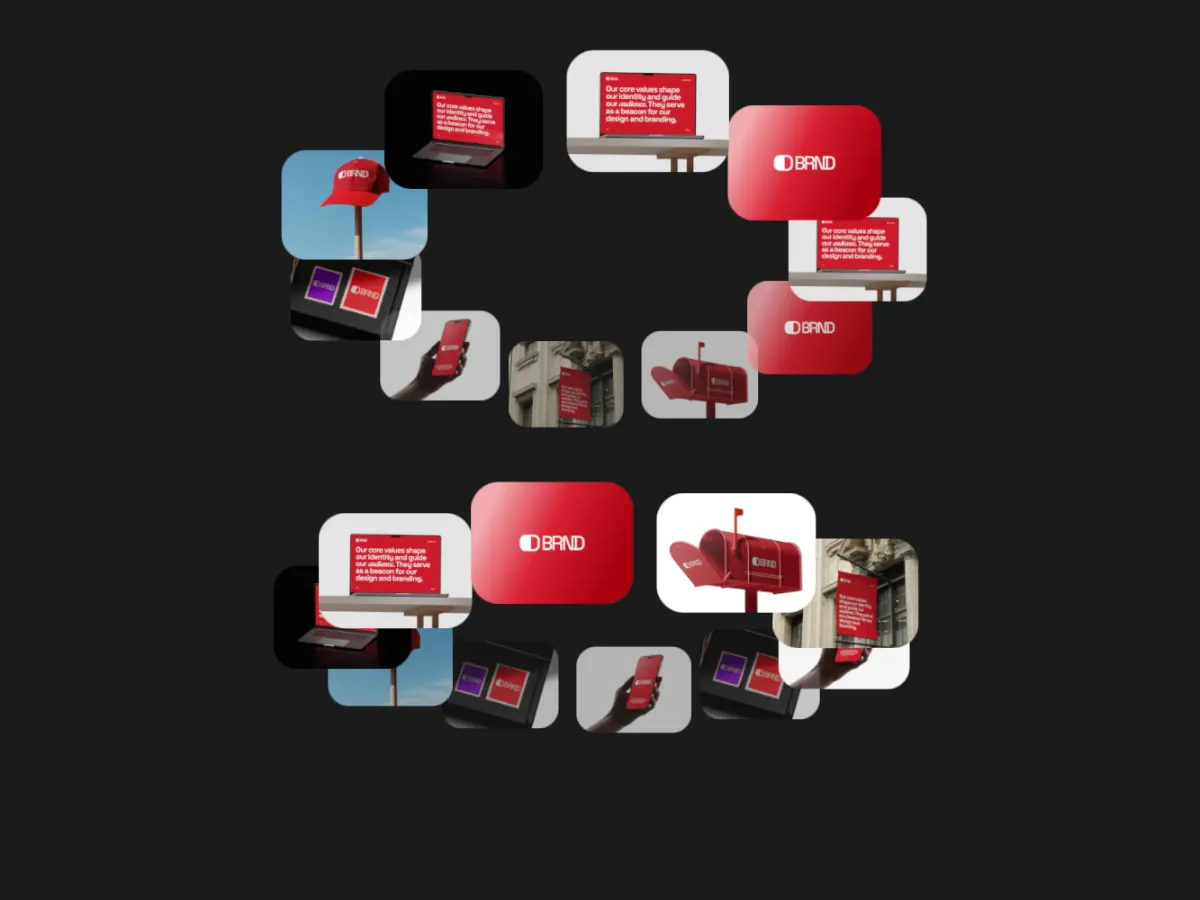
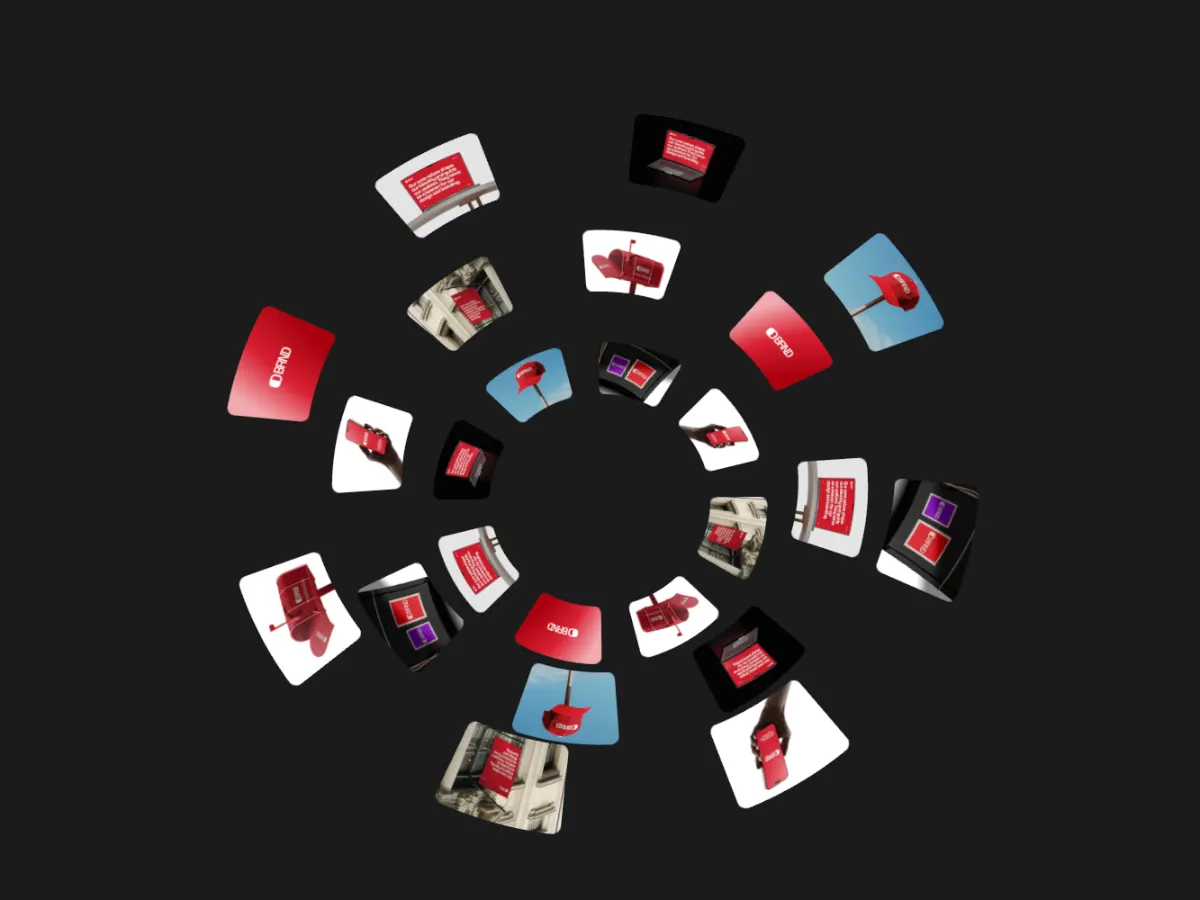
Two tilted rings of cards, one above the other, turning in opposite directions.
Opens in the studio with sample work. Free at 720p.
How Twin Rings moves
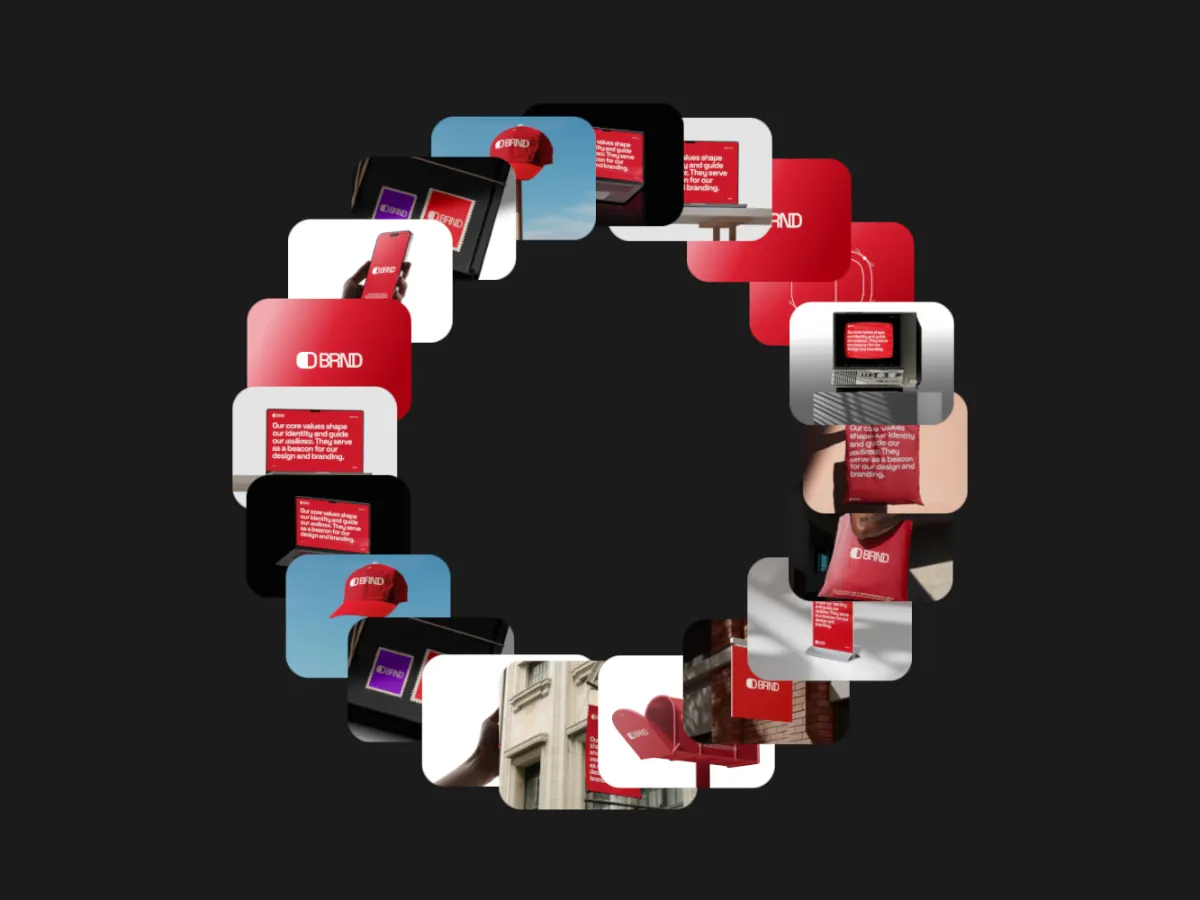
Twin Rings stacks two tilted rings of cards one above the other and turns them in opposite directions. The second ring starts half way through your pictures, so the two rings show different work, and cards on the back of each ring fade. Ring size, tilt and card size are adjustable. A balanced, symmetrical composition for a 1:1 or 4:5 post.
In the studio you can tune its 7 settings along with the background, shadow and loop length, and your images never leave your device.
Twin Rings settings
Every setting below is in the studio panel for Twin Rings. Each one changes the loop live, so you can try values while it plays.
| Setting | Range | Starts at |
|---|---|---|
| Padding | 0% to 20% | 6% |
| Corner radius | 0% to 12% | 3% |
| Card size | 10% to 28% | 17% |
| Ring size | 50% to 100% | 100% |
| Ring tilt | 45° to 85° | 66° |
| Back fade | 0% to 90% | 55% |
| Perspective | 0% to 40% | 20% |
Make a Twin Rings video
- Step 1
Open the template
"Use this template" opens Twin Rings in the studio at 1:1, already playing with sample work.
- Step 2
Add your work
It starts with 8 spots for images or short videos. Empty spots repeat your images, so a few are enough.
- Step 3
Tune the motion
Change the 7 settings above, the loop length (16 seconds to start), background and shadow.
- Step 4
Export the loop
Download MP4 or WebM. 720p is free with a free account and no watermark; 1080p, 2K and 4K come with Pro.
Where Twin Rings works well
More Orbit templates


Other kinds of motion
- 3D & Perspective 13
- Multiscene 8
- Isometric 4
- Orbit 9
- Carousel & Flow 11
- Grid 9
- Spotlight & Focus 4
- Reveal & Wipe 4
- Stack & Scatter 8